Android Data Migration Guide: V1 to V2

Data Migration Guide: V1 to V2

Important Prerequisites

Before starting the migration, please ensure:

  • Time: Allow enough time; the process can take a while depending on the number of sessions.

  • Device availability: Use a device you won’t need during migration so the app can run uninterrupted.

  • Internet connection: Use a fast, stable connection. We recommend doing this at home, not while traveling. Interruptions can cause errors.


Step-by-Step Migration Process

Step 1: First Launch After Update

After updating to V2 and launching the app for the first time, all sessions from V1 are prepared for synchronization. You can see the progress in a notification. Note: If you have very few sessions to migrate, the notification may appear only briefly or may not be visible, as the preparation process completes quickly.

Step 2: Grant Required Permissions

During the onboarding process, you will see a screen asking you to grant the permissions needed for migration. Important: The button to request permissions is only visible if required permissions are missing. If you already granted all necessary permissions, this step will be skipped automatically.

To proceed when the button is shown:

  1. Tap the button to request permissions (e.g., “Grant Permissions” or similar).

  2. When the system permission dialog appears, allow the requested permissions.

  3. After granting permissions, the migration will start automatically.

These permissions are required for the app to process and synchronize your sessions.

Step 3: Account Registration or Login

V2 requires a user account:

  • New users: Register directly in the app.

  • Existing users: If you already created an account via the web version, log in with your credentials.

Step 4: Automatic Session Transfer

After successful registration/login, sessions from V1 are automatically transferred. To monitor progress:

  1. Tap the two arrows icon at the top.

  2. On the following screen, you’ll see all sessions that haven’t been synchronized from V1 yet.

Step 5: Wait for Completion

Wait for the migration to complete. Duration depends on the number of sessions.

Important: Do not close the app during this time. Keep it open and active.


Handling Errors

If some sessions fail to synchronize:

  • They remain in the local list.

  • You can retry them from there.

  • If a session still fails after a second attempt, you can:

  • Swipe left to delete it, or

  • Swipe right to archive it.

Archived sessions: If you archive a session, you can send it to support (support@sunbits.de). They will investigate and try to resolve the issue.


Completion

The synchronization is complete when:

  • The status of migrated sessions reaches the end state.

  • In most cases, the session list will be empty.

  • A message appears indicating that all sessions have been synchronized.


If You Didn’t Grant Permissions During Onboarding

If you didn’t grant the required permissions during onboarding, you can start the migration manually:

  1. After logging in, go to your profile.

  2. At the very top, there is a button to manually start the migration.

  3. Then return to the logbook.

There you can use the two double‑arrow icon to reach the individual sessions and transfer them manually.

  1. Alternatively, you can close the app and let the process start automatically.

Need Help?

If you encounter problems during the migration, please contact our support team at support@sunbits.de.
Danke für die ganze Arbeit!

Beim ersten Anmelden wurden meine Daten aus dem Forum mit E-Mail und Passwort abgelehnt. Login über Google ging aber. Ich Habe ein altes Xiaomi 10 falls das hilft.

das freut mich zu hören, der Login aus dem Forum ist ein anderer als der Login in der App, das ist beides getrennt.

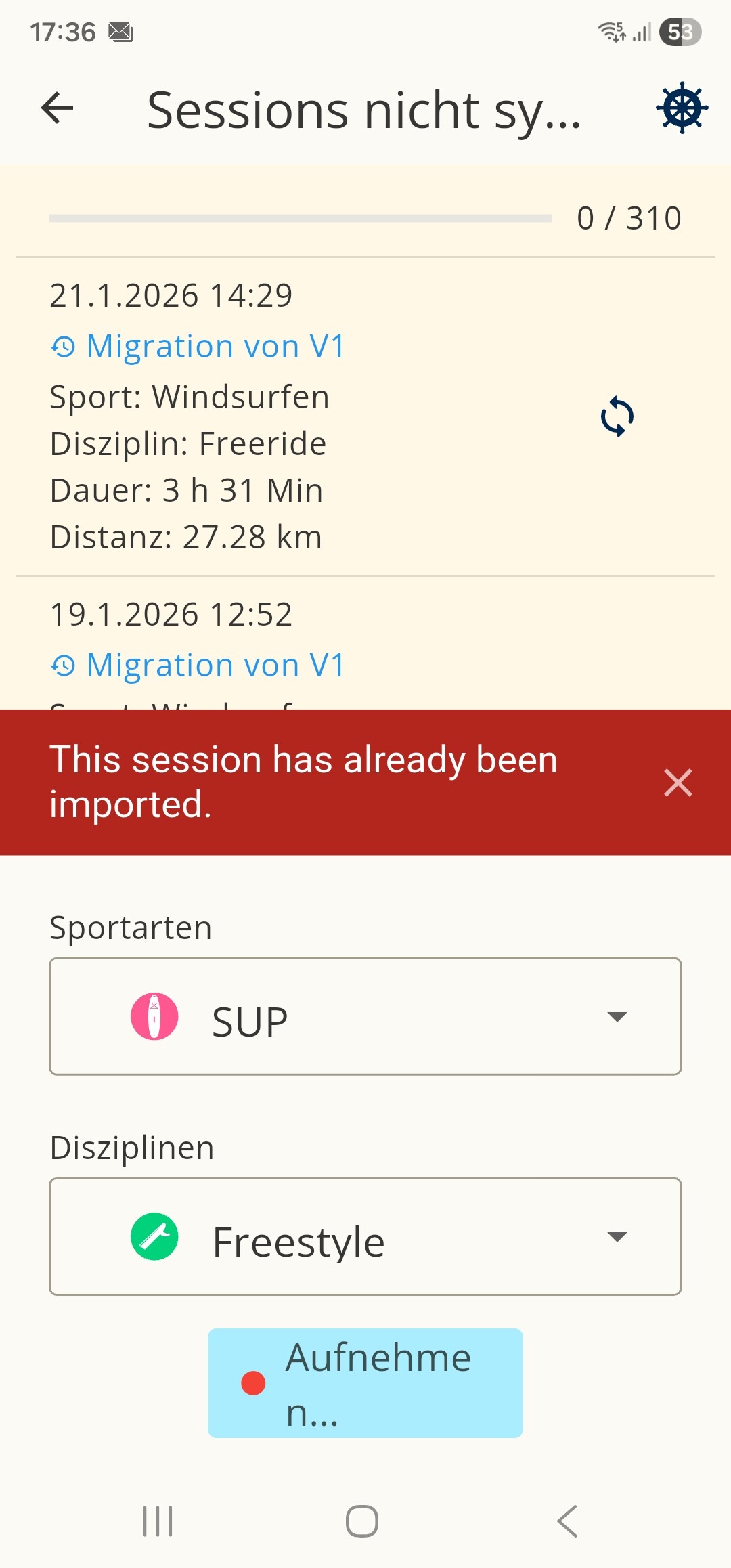
Ich habe meine Sessions von V1 nach V2 migriert. Er scheint auch fertig geworden zu sein, auch wenn ich bei ca. 600 Sessions das nicht ganz genau sagen kann. Aber die Anzahl der Gesamt km kommt in etwa hin. Bei jedem Start des WST beginnt er aber wieder erneut ohne dass ich die Migration anstoße. Er stellt dann bei jeder Session auch richtigerweise fest “This Session has already been imported”. Nutzen lässt sich der WST bei mir erst nach ca. 1-2 Stunden wenn er wieder fertig geworden ist. Beim nächsten Start geht es wieder erneut los mit der Migration. Was kann ich tun? Ein Screenshot hänge ich an, danke.

Das ist gut zu hören das es geklappt hat.
Wenn die Migration erneut startet liegt es daran das diese nicht beendet wurde.

Hierzu am besten im Logbuch auf die Doppelpfeile drücken. Dann kommt die Liste der sessions die nicht migriert wurden, diese entweder durch wischen nach links löschen oder durch wischen nach rechts archivieren. Archivieren bedeutet das sie lokal gespeichert werden und man sich die Daten so manuell ansehen kann wo es ggf Probleme in der v2 gab. Probleme können z.b. sein das die Session zu kurz <30s war.

Hilft das?

Vielen Dank für die schnelle Antwort. Die Liste der Sessions die angeblich nicht migriert wurden enthält die migrierten Sessions. Das ist das Problem. Das sind hunderte, insofern ist ein archivieren jeder einzelnen mühselig. WST prüft die alle und stellt richtiger weise fest, dass dies migriert sind, löscht sie aber nicht selber aus der Liste.

Hallo,

im nächsten Update werde ich das Verhalten anpassen und zusätzlich eine Option einbauen, mit der man alle Sessions gesammelt archivieren oder löschen kann.

Wenn du sicher bist, dass alle Sessions erfolgreich migriert wurden, gibt es bis dahin eine alternative Möglichkeit, das Problem manuell zu beheben:

Vorgehen:

  1. Stelle sicher, dass alle Sessions migriert wurden. Öffne dazu die App auf einem anderen Gerät (z. B. am PC) und vergleiche die Sessions im Logbuch mit der Liste der Sessions in der Migrationsübersicht.
  2. Falls Sessions nicht migriert wurden, archiviere diese bitte.
  3. Kopiere anschließend die archivierten Sessions aus folgendem Ordner
    SDCARD/Android/data/de.sunbits.windsporttracker/files/downloads/WST
    in einen anderen Ordner (z. B. lokal oder in Google Drive).Wichtig:
    Für diesen Schritt musst du den originalen Dateimanager des Systems verwenden, da nur dieser die nötigen Berechtigungen für diesen Ordner hat. Alternativ kannst du versuchen, den Ordner mit einer App wie Total Commander zu öffnen – diese leitet dich in der Regel automatisch zum richtigen System-Dateimanager weiter.
  4. Sobald die Punkte 1–3 abgeschlossen sind, kannst du entweder die App deinstallieren und neu installieren oder nur die App-Daten und den Cache löschen.
    Dazu das App-Symbol lange gedrückt halten → App-InfoSpeicherDaten und Cache löschen.

Wichtiger Hinweis:

Bei dieser Methode werden alle Daten der V1 gelöscht. Alles, was nicht migriert oder zuvor gesichert wurde, ist danach unwiderruflich verloren.
Bitte gehe daher nur so vor, wenn du dir sicher bist. Im Zweifel empfehle ich, auf das Update zu warten – dieses sollte in ca. zwei Wochen verfügbar sein.

Hello!

I would like to download my archived files, but nor the android system file manager method or the USB computer connection (I tried it with windows pc with total commander and macbook with macdroid) isn’t working. I have samsumg a33 with android 16. Are there any other way to export my ORIGINAL gpx files? (unfortunately they get cropped when imported into the new version of the app)

Hi,

to download the archived files, please open this folder on your phone:

Android/data/de.sunbits.windsporttracker/files/downloads/WST

On many Samsung devices, the My Files app blocks access to Android/data. In that case, please install Total Commander on your phone.

Steps:

  1. Open Total Commander and grant all requested permissions.
  2. Navigate to Internal Storage → Android → data.
  3. When prompted, allow the permission to “list all apps.”
  4. Open the folder de.sunbits.windsporttracker.
  5. Android will ask you to confirm access via the system file manager — please approve it.
  6. You can then access and copy the files.

It may look complicated at first, but once the permissions are granted, accessing the folder is straightforward.

The app uses this location because it is the official and recommended directory for app-specific public files on Android. Storing files elsewhere would require manual folder selection and permission approval for each file, which would make archiving multiple files much more complicated.

Please let me know if this works for you :slightly_smiling_face:

Thank you for the info!

Meanwhile I unfortunately ended up reinstalling the old version of windsport tracker and it seems like it wiped all my gpx/sbp files from the phone. :frowning: Are the original (uncropped) gpx files stored on the server when I migrated my data from the old version?

I’m sorry to hear that.

I strongly recommend not installing the old app from an unofficial source. The code is not verified and could potentially be modified or compromised, which poses a security risk.

The data you migrated to V2 is still present in your V2 account. Simply log in again and you should be able to access it. One of the key advantages of V2 is that your data is account-based and no longer tied to a specific device, so it remains available independently of your phone.

Are there an offical source?

The only official source is the Google Play Store.